Overview of Changes & New Features
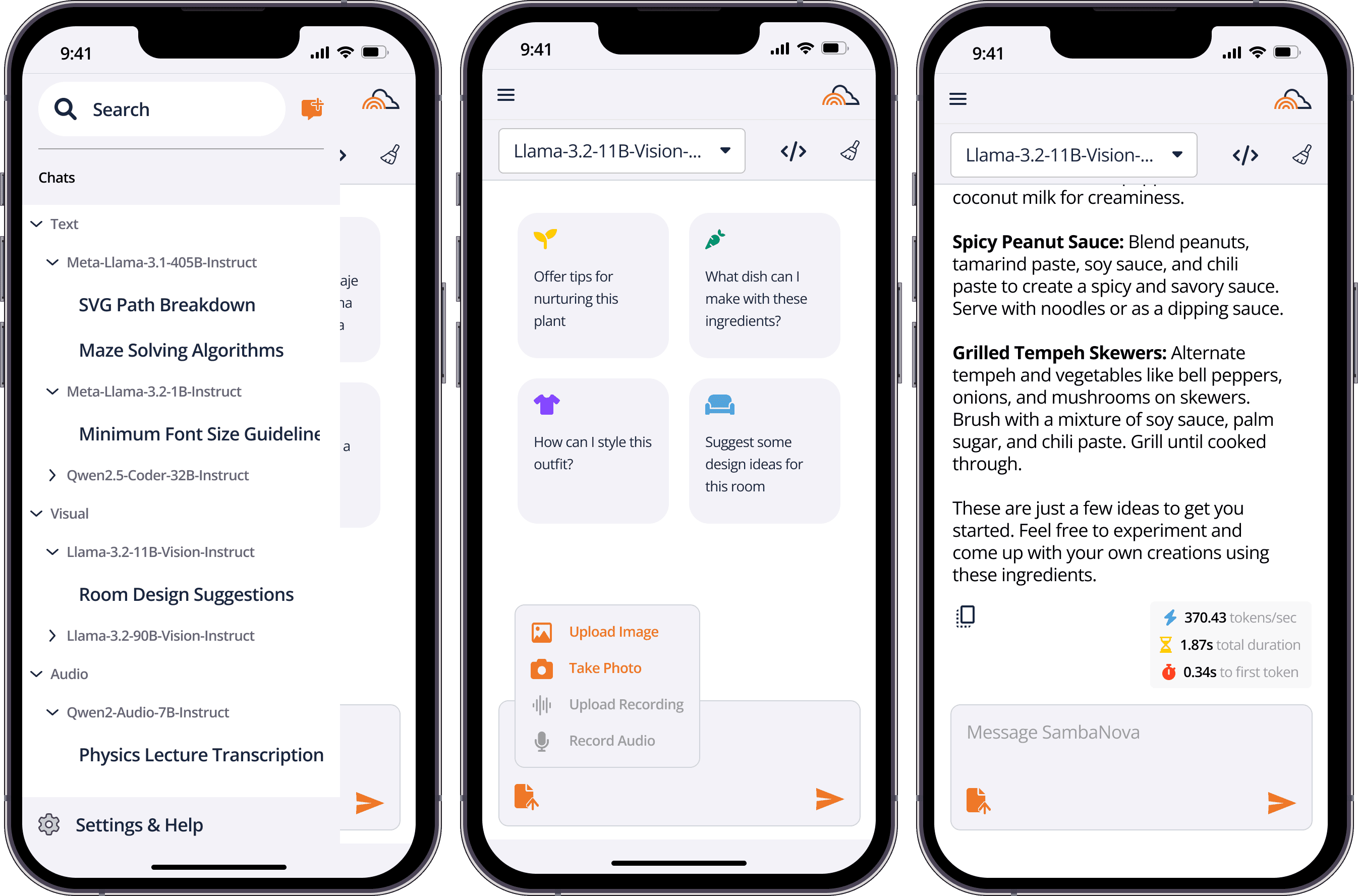
Multilingual suggestions to demonstrate the LLMs’ language capabilities on the main screen
Dynamic suggestions to highlight the system’s ability to adjust based on user activity and model type
Colored icons for stats to emphasize key performance metrics related to throughput and latency
Consolidated ‘Upload Media’ icon to streamline upload options with clear menu choices and media upload prompts to guide users on uploading photos and audio based on the model type
Clear Chat confirmation prompt to prevent accidental chat deletions by asking for user confirmation
Saved chats to organize and categorize past conversations by model type and specific model used
Updated slide-out menu to include previous menu options under the 'Settings & Help' section
Safeguards demonstration to highlight the model’s built-in safety features for detecting and rejecting harmful content, ensuring ethical usage
To showcase the multilingual capabilities of the models, certain suggestions on the main screen will be displayed in multiple languages. Examples of Spanish and Thai suggestions are displayed in the top-right and bottom-left respectively.

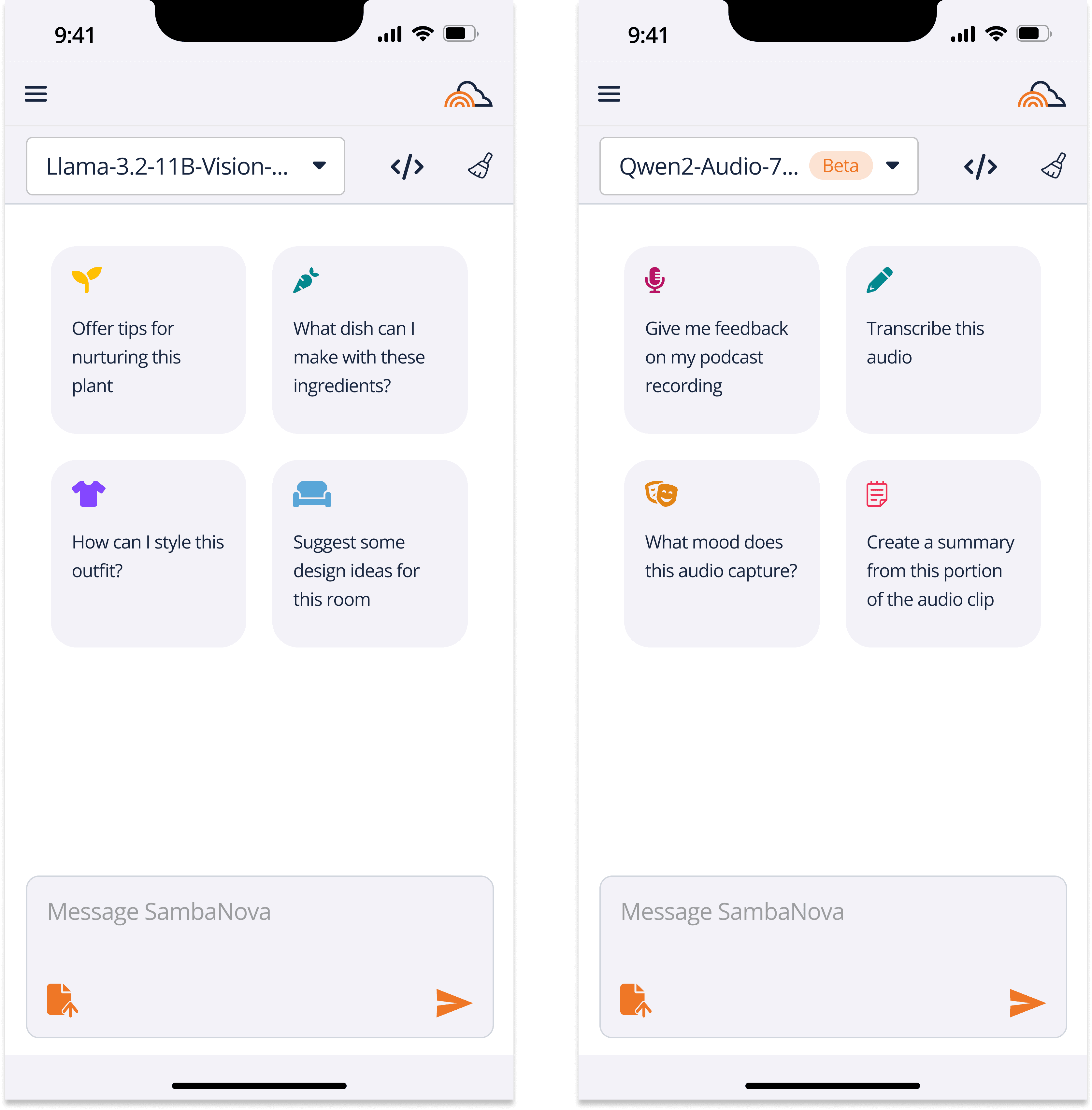
Suggestions will dynamically adjust based on the user's activity and the type of model in use. When clicking on the suggestions, users will be prompted to either upload or take a photo for visual models, or upload a recording or record audio for audio models, as applicable.
To make the statistics more noticeable, colored icons have been added to each stat, helping them stand out and improving overall visibility.

Colored Icons Added

Uploading Media (Text & Visual)
The 'Upload Image,' 'Upload Recording,' and 'Take Recording' icons in the chat box have been consolidated into a single 'Upload Media' icon. When clicked, a menu will appear offering options to 'Upload Photo,' 'Take Photo,' 'Upload Recording,' or 'Record Audio.'
In text-only models, the 'Upload Media' icon will be greyed out, prompting the user to switch to a different model if they wish to upload media. Similarly, in visual models, audio-related options will be greyed out, while in audio models, visual-related options will be unavailable.
The 'Clear Chat' icon now includes an additional confirmation prompt, asking the user to confirm if they are sure they want to clear the chat.

‘Clear Chat’ Confirmation

Chats with models are now automatically saved and can be accessed through the slide-out menu. Chats are organized into two categories: a broader one based on the model type (text, visual, or audio), and a more specific category that sorts chats by the exact model used. Users can start a new chat by clicking the orange icon located in the top-right corner of the slide-out menu.
Previous options from the old slide-out menu can now be accessed via the 'Settings & Help' button at the bottom of the new slide-out menu.
A demonstration highlighting the model’s built-in safeguards designed to detect and reject inappropriate or harmful content, ensuring the model is used safely and ethically. This example illustrates a user attempting to query the model on how to create a Molotov cocktail, with the model rejecting the request.

Dangerous Content Prevention